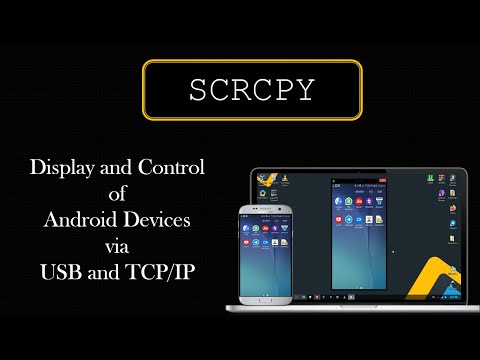
Do you want to access your Android device remotely? There's a tool for that: "Scrcpy."
Scrcpy lets you display and control your Android devices through a USB connection or over a network (TCP/IP).
To get started, you need to install and configure ADB (Android Debug Bridge).
Configure on windows
1) Download scrcpy from Github.
2) Configure scrcpy. Extract all contents and copy them to "C:\adb\".
.png)
Access Your Android device using a USB cable
Now open your command-line interface. Here type “adb devices” to display all information about devices connected to the PC and with their serial numbers.

Now Run scrcpy.exe. Here you see your device pop up on the screen.

Now let it connect with TCP/IP.
Access your Android device from the IP address
You have just to type "adb connect {your device IP address}" with port ID. And hit enter.
.png)
As here you see we are now connected with the Android device through TCP/IP.
Before we start, it is important your Android device and your PC both be connected to the same network.Now open the command-line interface. Plugin your Android and here type "adb devices". As here you see a device is connected to a USB.
Now here type adb tcpip <port number>.
.png)
Now let it connect. Type "adb connect" and here type your IP address. To find the IP address, go to Settings → About phone → Status. This is your IP address.
.png)
Run scrcpy.exe:
.png)
There are few other commands are there. I suggest you read the manual by typing "scrcpy.exe -h".
.png)
If you have any doubts or queries write below in my comment.